
Managing screen brightness becomes difficult when a computer uses multiple external monitors. Windows 11 offers standard display controls, but adjusting brightness on every external screen is not always simple. Monitorian provides an easier solution by allowing users to manage supported monitor brightness from a convenient Windows interface.
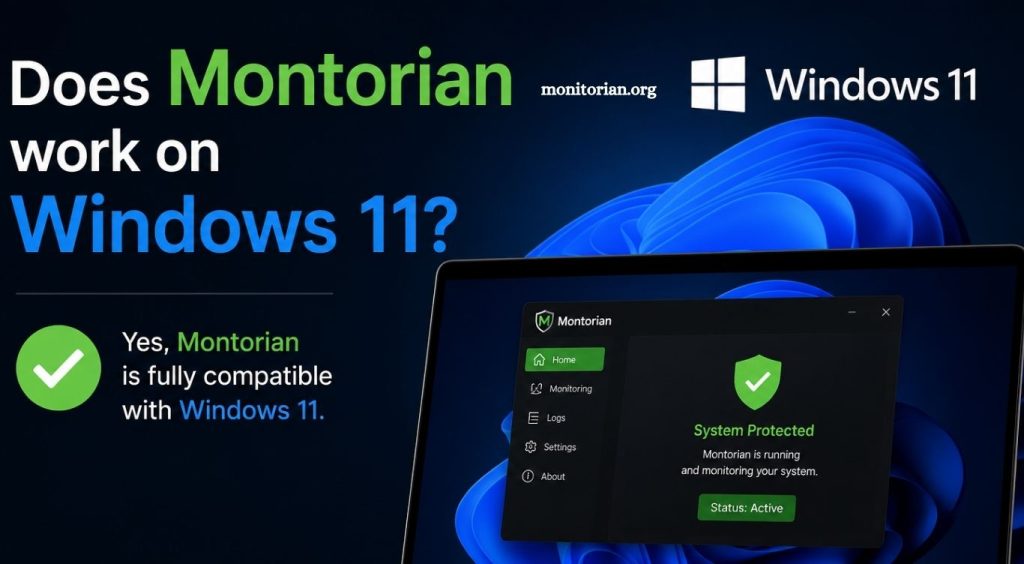
A common question among multi-monitor users is, “Does Monitorian work on Windows 11?” Yes, Monitorian works with Windows 11 and supports compatible monitors. However, monitor hardware, DDC/CI support, display connections, and system settings can affect overall performance. This guide explains Monitorian compatibility, setup, features, and common Windows 11 issues.
Does Monitorian Work on Windows 11?
Yes, Monitorian works on Windows 11 and provides convenient brightness control for supported displays. The application is designed for modern Windows systems and allows users to adjust monitor brightness without repeatedly using physical buttons. Windows 11 users can install Monitorian and access brightness controls through a clean, lightweight interface.
Read More: How do I update monitorian?
Monitorian works especially well for users with dual-monitor or multi-monitor setups. Each compatible display can appear with a separate brightness slider, making individual screen adjustment easier. Performance depends on monitor compatibility, so users should confirm that external displays support DDC/CI communication.
What Is Monitorian and How Does It Work?
Monitorian is a Windows application created to simplify monitor brightness management. Instead of opening a monitor’s built-in menu, users can change brightness directly through software. The application detects supported displays and provides simple controls for changing brightness levels according to personal viewing preferences.
Monitorian communicates with compatible external monitors through DDC/CI technology. This communication method allows Windows software to send display control commands to a monitor. When DDC/CI is enabled, Monitorian can adjust brightness quickly. Unsupported monitors or disabled DDC/CI settings may prevent proper detection.
Why Use Monitorian on Windows 11?
Windows 11 provides useful display settings, but external monitor brightness controls can remain limited. Users often need to press buttons under or behind a monitor to change brightness. Monitorian removes much of this inconvenience by bringing supported display controls into a single Windows application.
The software is valuable for office workers, developers, content creators, and users who spend long hours looking at multiple screens. Brightness can be lowered during evening work or increased in bright environments. Easy adjustments can create a more comfortable and consistent viewing experience across several monitors.
Monitoring Requirements for Windows 11
Monitorian requires a supported Windows system and compatible display hardware. Windows 11 meets the operating system requirement, but external monitors should support DDC/CI. Users should also keep graphics drivers and important Windows components updated to reduce display communication problems.
A proper monitor connection also plays an important role. HDMI, DisplayPort, and USB-C connections may work differently depending on the monitor, graphics hardware, adapter, or docking station. Direct monitor connections often provide more reliable communication compared with unsupported converters or older display adapters.
How to Install Monitorian on Windows 11
Installing Monitorian on Windows 11 is a simple process. Users can find the application through trusted official distribution sources, including the Microsoft Store and the official Monitorian project repository. Downloading software from official sources reduces security risks and helps users receive legitimate application versions.
After installation, open Monitorian and allow the application to detect connected displays. Compatible monitors should appear with available brightness controls. Users can move each brightness slider to adjust a specific screen. If a monitor does not appear, checking DDC/CI settings should be an early troubleshooting step.
Does Monitorian Support Multiple Monitors?
Yes, Monitorian is mainly designed for multi-monitor brightness management. Users with two or more compatible screens can manage display brightness without changing settings manually on each monitor. Separate controls make it easier to match brightness levels across a complete desktop setup.
Multi-monitor support is useful when displays from different brands produce different brightness levels. One monitor may appear brighter than another even when both use similar settings. Monitorian allows users to make quick adjustments and create a more balanced visual experience during work, gaming, or entertainment.
Why Is Monitorian Not Detecting a Monitor?
A disabled DDC/CI option is one common reason Monitorian may not detect an external display. Many monitors include this setting inside the built-in on-screen menu. Users should open monitor settings, locate DDC/CI, and confirm that the option is enabled. Restarting Monitorian after changing the setting may help refresh monitor detection.
Display cables, adapters, docking stations, and outdated drivers can also cause detection problems. Users can reconnect the monitor, try another compatible cable, or connect the display directly to the computer. Updating graphics drivers and restarting Windows 11 may also resolve temporary communication issues.
Is Monitorian Safe to Use on Windows 11?
Monitorian is an open-source Windows application, meaning its project information and source code are publicly available. Users interested in application development or security can review project details through official resources. Installing the application from a trusted source provides a safer experience than downloading modified versions from unknown websites.
Users should avoid unofficial download pages that bundle applications with unwanted software. The Microsoft Store or official Monitorian project page should remain the preferred installation source. Keeping Monitorian updated can also provide bug fixes, compatibility improvements, and a more stable Windows 11 experience.
Monitorian vs Windows 11 Brightness Controls
Windows 11 built-in brightness settings work well for many laptop displays, but external monitor control can vary. Desktop users may discover that Windows does not provide a standard brightness slider for every connected display. Physical monitor buttons then become the main method for adjusting screen brightness.
Monitorian offers a more convenient approach for compatible external monitors. It places brightness controls in an accessible interface and supports individual display adjustments. Users with several monitors may find Monitorian more practical than repeatedly navigating monitor menus or pressing hardware buttons.
Common Monitorian Problems on Windows 11
Some Windows 11 users may experience missing monitors, inactive brightness sliders, or delayed display detection. These issues often relate to monitor communication rather than the operating system itself. Checking DDC/CI support, reconnecting display cables, and restarting the application can solve many basic problems.
Graphics driver updates may also improve monitor communication. If a problem continues, users should test the monitor with a direct connection and remove unnecessary adapters temporarily. Checking Monitorian updates can also help because newer versions may include stability improvements and fixes for modern Windows environments.
Should You Use Monitorian on Windows 11?
Monitorian is a useful option for Windows 11 users who regularly adjust external monitor brightness. Its simple controls can save time and reduce dependence on physical monitor buttons. Multi-monitor users can manage supported displays from one place and create more consistent brightness levels across their workspace.
Users with a single laptop screen may find Windows 11 built-in brightness controls sufficient. However, desktop users and professionals with multiple external displays can benefit more from Monitorian. Monitor compatibility remains important, especially when DDC/CI communication is required for software-based brightness adjustment.
Conclusion
Monitorian works well on Windows 11 and offers a simple way to control brightness across compatible external monitors. Its easy interface and multi-monitor support make display management more convenient, especially for users who want to avoid physical monitor buttons.