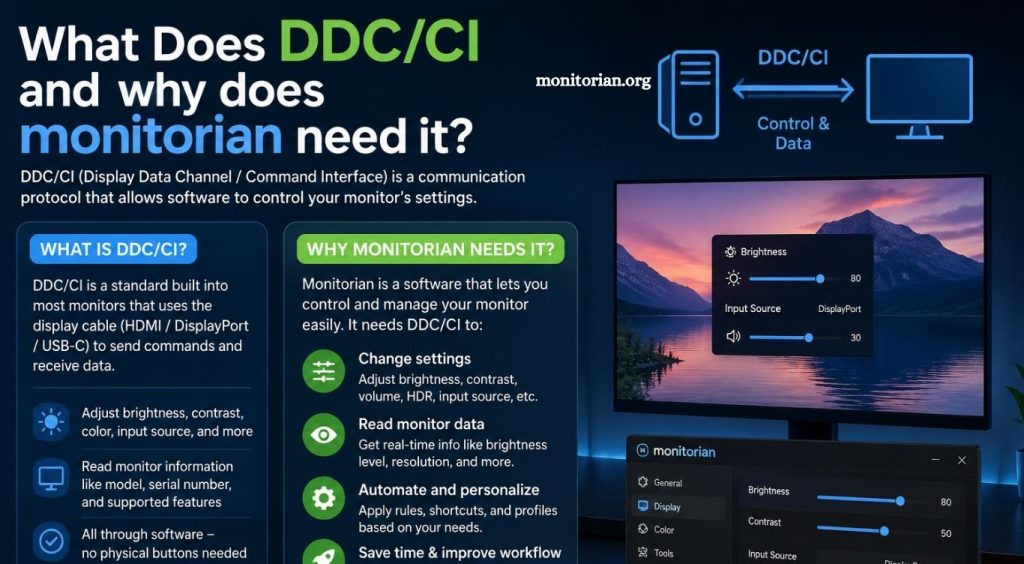
DDC/CI plays an important role in controlling external monitor settings directly through Windows. This display communication technology allows a computer to send supported commands to a compatible monitor, including brightness and contrast adjustments. Monitorian uses DDC/CI to manage monitor brightness without requiring physical buttons or the built-in display menu. When DDC/CI is disabled or unsupported, Monitorian may fail to detect or control an external display properly.
Understanding what DDC/CI means and why Monitorian needs it helps users manage multi-monitor setups more efficiently. It also makes troubleshooting brightness control problems easier. This guide explains DDC/CI functionality, its connection with Monitorian, compatibility requirements, and essential steps for smooth external monitor brightness management on Windows systems.
What Does DDC/CI Mean?
DDC/CI stands for Display Data Channel/Command Interface. It is a communication standard that allows a computer and monitor to exchange control commands.
DDC/CI lets software communicate directly with a compatible monitor. Instead of pressing physical monitor buttons, users can adjust supported display settings through software.
Common DDC/CI controls include:
- Monitor brightness
- Contrast level
- Input source
- Color settings
- Power-related controls
- Other supported display features
Feature availability depends on the monitor model and manufacturer.
Read More: Can Montorian adjust contrast too?
How Does DDC/CI Work?
DDC/CI creates a communication path between your computer and an external monitor. When you change brightness through compatible software, the application sends a command to the monitor. The monitor receives that command and adjusts its hardware brightness level.
For example, when you move the brightness slider in Monitorian, the process works like this:
- Monitorian → Windows display communication → DDC/CI command → Monitor brightness adjustment
The change usually happens almost instantly. Unlike software-based screen dimming, DDC/CI can control the monitor’s actual brightness setting. This approach provides more natural brightness control and works similarly to using the monitor’s built-in menu.
What Is Monitorian?
Monitorian is a Windows application designed to manage monitor brightness from a simple interface. It is particularly useful for multi-monitor setups. Users can control supported external displays without opening each monitor’s on-screen display menu.
Monitorian can provide individual brightness sliders for detected monitors, making display management faster and more convenient. However, external monitor control depends heavily on hardware communication support. That is where DDC/CI becomes important.
Why Does Monitorian Need DDC/CI?
Monitorian needs DDC/CI because external monitors require a supported communication method for hardware brightness control.
Windows can usually control a laptop’s built-in display through internal system interfaces. External monitors work differently. Their brightness settings are often managed by the monitor’s own hardware. DDC/CI allows Monitorian to send brightness commands directly to supported external displays.
Without DDC/CI, Monitorian may detect limited monitor information but fail to change brightness. In some cases, the external monitor may not appear as an adjustable display. Simply put, DDC/CI acts as a bridge between Monitorian and your monitor’s hardware controls.
Does Monitorian Work Without DDC/CI?
Monitorian may still work with a laptop’s internal display without DDC/CI. Built-in displays often use Windows-supported brightness control methods. External monitors are different.
For most standard external displays, Monitorian needs DDC/CI support to change hardware brightness. If DDC/CI is unavailable or disabled, the brightness slider may not appear or may fail to respond. Monitorian cannot force hardware control when a monitor does not accept DDC/CI commands.
How to Enable DDC/CI on a Monitor
Many modern monitors support DDC/CI, but the feature may need to be enabled through the monitor’s settings menu.
Follow these general steps:
- Press the Menu or Settings button on your monitor.
- Open the monitor’s On-Screen Display (OSD) menu.
- Look for System, General, Setup, or Extra Settings.
- Find the DDC/CI option.
- Set DDC/CI to On or Enabled.
- Close and restart Monitorian.
Menu names vary between monitor brands and models. Some monitors enable DDC/CI by default and do not provide a visible setting.
Why Is Monitorian Not Detecting My Monitor?
If Monitorian does not detect an external monitor, DDC/CI could be disabled. However, several other factors may also affect monitor communication.
Common causes include:
- DDC/CI disabled in monitor settings
- Monitor lacks DDC/CI support
- Display cable communication limitations
- Docking station compatibility issues
- USB display adapters
- Graphics driver problems
- Monitor firmware limitations
- KVM switch interference
- Display connection issues
Start by checking the monitor’s OSD menu and enabling DDC/CI.
Next, connect the monitor directly to the computer when possible. This can help identify whether a dock, adapter, or switch is blocking DDC/CI communication.
Does HDMI Support DDC/CI?
Yes, HDMI can support DDC/CI communication.
In many setups, Monitorian can control compatible monitors connected through HDMI. However, successful control depends on the monitor, graphics hardware, cable, adapter, and overall connection path.
Some adapters or docking stations may not properly pass DDC/CI commands. If brightness control fails through an adapter, try a direct HDMI connection.
Does DisplayPort Support DDC/CI?
DisplayPort can also support DDC/CI-based monitor control. Many modern DisplayPort monitors work correctly with Monitorian. Direct connections generally provide better results than complex adapter chains.
If Monitorian cannot control a DisplayPort monitor, check DDC/CI settings and update the graphics driver before testing another cable or connection method.
Can USB-C Monitors Work With Monitorian?
USB-C monitor compatibility depends on how video signals and monitor commands travel through the connection. A USB-C connection using DisplayPort Alt Mode may support monitor communication. However, docks, hubs, and adapters can sometimes prevent DDC/CI commands from reaching the display. For troubleshooting, connect the monitor directly to the computer if possible.
DDC/CI Enabled but Monitorian Still Does Not Work
Enabling DDC/CI does not guarantee immediate brightness control. If Monitorian still cannot control your monitor, try these troubleshooting steps:
- Restart Monitorian.
- Power off the monitor and turn it back on.
- Restart Windows.
- Update the graphics driver.
- Check for monitor driver or firmware updates.
- Replace the display cable.
- Remove unnecessary adapters.
- Bypass the docking station.
- Test a direct HDMI or DisplayPort connection.
- Confirm that the monitor supports DDC/CI brightness commands.
Some monitors provide partial DDC/CI support. A display may support certain commands while rejecting brightness control.
DDC/CI vs Software Dimming
DDC/CI brightness control and software dimming are not the same. DDC/CI changes the monitor’s hardware brightness level. The monitor itself adjusts brightness based on the received command.
Software dimming usually applies a dark overlay or modifies displayed colors. The monitor’s physical backlight level may remain unchanged. DDC/CI control often provides a more consistent experience because it adjusts a supported monitor setting directly.
Is DDC/CI Safe to Enable?
Yes, DDC/CI is generally safe to enable on supported monitors. It is a standard communication feature designed for monitoring management. Applications such as Monitorian use supported monitor commands to adjust available settings.
Enabling DDC/CI does not automatically give software unlimited access to your computer. It allows compatible software to communicate with supported monitor controls. As with any application, use trusted software from reliable sources.
Benefits of Using DDC/CI With Monitorian
Using DDC/CI with Monitorian offers several practical benefits:
- Control monitor brightness from Windows
- Avoid physical monitor buttons
- Manage multiple monitors quickly
- Set brightness individually for each display
- Simplify multi-monitor workflows
- Reduce repeated OSD menu navigation
- Create a more convenient desktop setup
These benefits make DDC/CI particularly valuable for users with two or more external monitors.
Conclusion
DDC/CI helps Monitorian communicate with compatible external monitors and control brightness directly from Windows. Enabling DDC/CI can simplify display management, especially for multi-monitor setups. If Monitorian cannot detect or adjust your monitor, check DDC/CI settings, display connections, cables, and adapters. With proper compatibility, Monitorian provides a quick and convenient way to manage monitor brightness without using physical display buttons.