
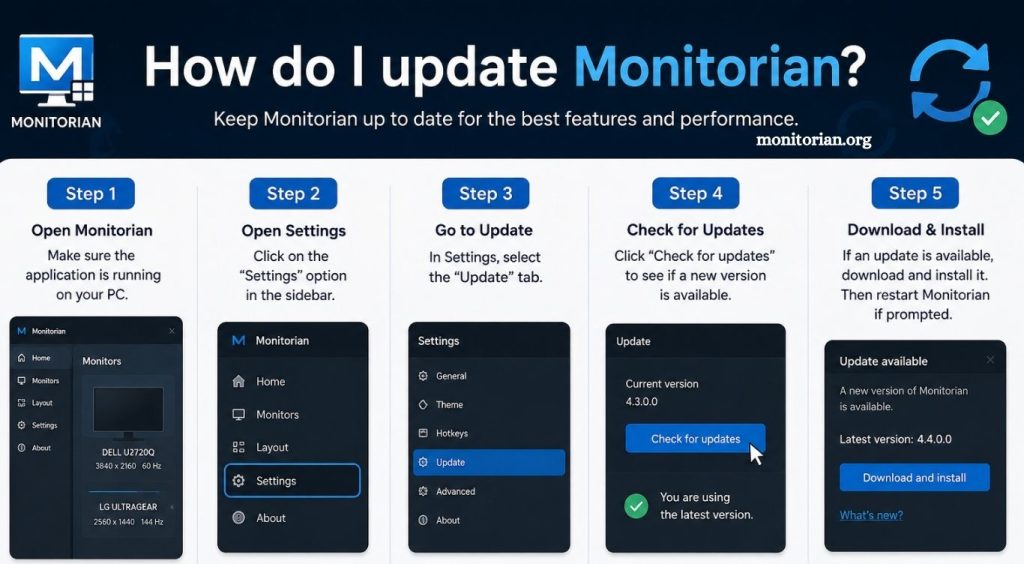
Updating Monitorian is an easy way to keep the application running smoothly and ensure reliable monitor brightness control. If you are wondering, “How do I update Monitorian?” the process depends on how the app was installed on your Windows computer. Microsoft Store users can quickly check for available updates, while manually installed versions may require downloading the latest release from the official source.
Regular updates can fix bugs, improve compatibility, and introduce useful improvements. This guide explains the easiest methods to update Monitorian, solve common update problems, and keep the application working efficiently on Windows 10 and Windows 11 devices.
What Is Monitorian?
Monitorian is a lightweight Windows application designed to control the brightness of multiple monitors. It provides a simple interface that allows users to adjust supported displays directly from the Windows desktop.
Read More: Is Montorian safe to download and install?
The application can detect connected monitors and display individual brightness controls. This feature makes Monitorian useful for desktop setups with two or more screens.
How Do I Update Monitorian?
You can update Monitorian through the Microsoft Store or install the latest version manually. The correct method depends on how you originally installed the application.
Update Monitorian through the Microsoft Store
If Monitorian was installed from the Microsoft Store, updating the application is simple.
Follow these steps:
- Open the Microsoft Store on your Windows computer.
- Click Library in the left menu.
- Select Get updates or Check for updates.
- Wait while Windows searches for available application updates.
- Find Monitorian in the update list.
- Click Update if a new version is available.
The Microsoft Store will download and install the latest Monitorian version automatically.
After installation, open Monitorian and check whether the application works correctly with your connected monitors.
Enable Automatic Updates for Monitorian
Automatic updates can save time and help keep Monitorian current. Open the Microsoft Store and access the application settings. Make sure automatic app updates are enabled. When this option is active, the Microsoft Store can install new Monitorian versions when updates become available. Automatic updates reduce the need to check for new versions manually.
How to Update Monitorian Manually
Users who installed Monitorian outside the Microsoft Store may need to update it manually. First, check the currently installed Monitorian version. Open the application and review its version information in the settings or application details.
Next, visit the official Monitorian release source and check for a newer version. Download the latest supported release and follow the installation instructions. Close Monitorian before starting the installation process to prevent file conflicts. Once the installation finishes, restart the application.
Should I Uninstall the Old Monitorian Version?
In most cases, uninstalling Monitorian before updating is unnecessary. A standard update should replace older application files while keeping existing settings.
However, removing the previous version may help when installation errors occur.
To uninstall Monitorian:
- Open Windows Settings.
- Select Apps.
- Open Installed apps.
- Search for Monitorian.
- Click the menu beside the application.
- Select Uninstall.
After removal, install the latest Monitorian version from a trusted official source.
How to Check the Monitorian Version
Checking the installed version can help determine whether an update is required. Open Monitorian and look for version details in the application settings or information section. Compare the installed version with the latest available release. If the version numbers match, Monitorian is already updated.
Why Is Monitorian Not Updating?
Monitorian may fail to update because of Microsoft Store problems, internet connection issues, Windows permissions, or damaged application files.
Several solutions can help resolve the problem.
Check Your Internet Connection
A stable internet connection is required to download application updates. Confirm that your computer is connected to the internet before checking for Monitorian updates.
Restart Microsoft Store
Close the Microsoft Store completely and open it again. Temporary Store problems can sometimes prevent applications from updating.
Restart Your Computer
- Restarting Windows can clear temporary system errors and release files used by background applications.
- After restarting the computer, try updating Monitorian again.
Repair or Reset Microsoft Store
- Windows includes troubleshooting options for installed applications.
- Open Settings > Apps > Installed apps, locate Microsoft Store, and access Advanced options. Try the Repair option first.
- If the problem continues, use Reset. Keep in mind that resetting the Store may require you to sign in again.
Reinstall Monitorian
- If Monitorian still refuses to update, uninstall the application and install the latest version again.
- A clean installation can remove damaged files and resolve update problems.
Will Updating Monitorian Delete My Settings?
A normal Monitorian update usually keeps existing application settings. Brightness preferences and configuration options should remain available after the update.
A complete uninstall or application reset may remove some saved settings. Review your preferred configuration after reinstalling the software.
Why Should You Keep Monitorian Updated?
Updating Monitorian can provide several benefits, including improved stability, better monitor compatibility, bug fixes, and application enhancements.
Windows updates can occasionally change how applications communicate with connected hardware. Using a recent Monitorian version may reduce compatibility problems. Regular updates also help ensure that available features work as intended.
Monitorian Update Best Practices
Before updating Monitorian, save important work and close unnecessary applications. Use an official download source and avoid unknown third-party software websites. Restart Monitorian after the update and test brightness controls on every connected display. If a monitor is missing, check the display connection and restart the application.
Conclusion
Updating Monitorian is a simple process that helps maintain smooth performance, better monitor compatibility, and access to recent improvements. Users can update Monitorian through the Microsoft Store or install the latest version manually from an official source. If update problems occur, restarting Windows, checking the internet connection, or reinstalling the application can often fix common issues. Keeping Monitorian updated ensures reliable brightness control and a better experience across multiple monitors.