
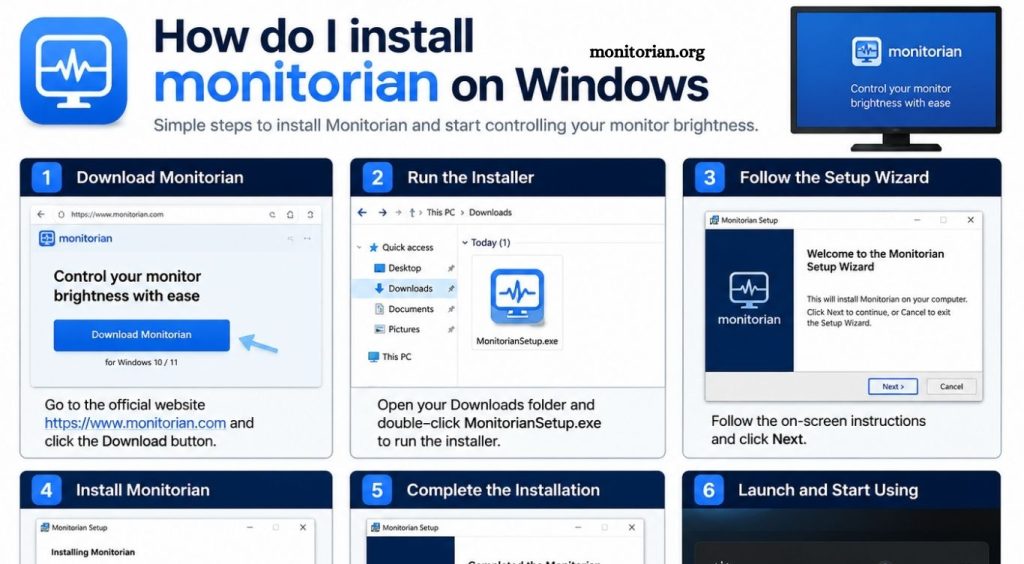
Adjusting monitor brightness becomes difficult when using multiple displays. Windows offers built-in brightness controls for laptop screens, yet external monitors often require physical buttons. Monitorian provides a simple solution by allowing users to manage compatible monitor brightness directly from Windows.
This guide explains how to install Monitorian on Windows, launch the application, and start controlling monitor brightness with minimal effort.
What Is Monitorian?
Monitorian is a Windows brightness control application designed for managing multiple monitors. It provides quick access to brightness settings through the Windows system tray.
The application can detect compatible external monitors and display individual brightness controls. Users can change screen brightness without opening monitor menus or pressing hardware buttons.
Read More: What is Monitorian?
Monitorian works especially well for users with dual-monitor or multi-monitor setups. Its clean interface makes daily brightness management faster and more convenient.
How Do I Install Monitorian on Windows?
Installing Monitorian on Windows is a straightforward process. The easiest method involves using the Microsoft Store, which provides a secure installation and automatic application updates.
Open the Microsoft Store from the Windows Start menu. Enter “Monitorian” in the search field and open the application page from the search results. Select the install or get option and allow Windows to complete the download.
Installation usually takes only a short time, depending on internet speed and system performance. Windows handles the required files automatically, removing the need for complex setup configurations.
After installation finishes, Monitorian becomes available through the Start menu.
How to Launch Monitorian After Installation
Open the Windows Start menu and search for Monitorian. Select the application to launch it.
Once running, Monitorian usually appears in the system tray near the Windows clock. Select the Monitorian icon to view detected displays and available brightness controls.
Each compatible monitor appears with its own brightness slider. Move the slider to increase or decrease display brightness. Changes should appear immediately on supported monitors.
Keeping Monitorian active in the system tray provides fast access to display controls throughout the day.
Does Monitorian Work With External Monitors?
Monitorian supports many external monitors that use Display Data Channel Command Interface technology, commonly known as DDC/CI. This technology allows Windows applications to communicate with monitor hardware and modify settings such as brightness.
If an external display does not appear in Monitorian, check the monitor’s built-in settings menu. Find the DDC/CI option and make sure it is enabled.
Some monitors, display adapters, docking stations, or connection methods may limit DDC/CI communication. Direct HDMI or DisplayPort connections often provide better compatibility, although results depend on monitor hardware.
Why Is Monitorian Not Detecting My Monitor?
Monitor detection problems can occur because of disabled DDC/CI settings, unsupported hardware, or display connection limitations.
First, confirm that DDC/CI is enabled through the monitor’s physical menu. Close Monitorian and open it again after changing the setting. Restarting Windows may also help the system detect the display correctly.
Check the monitor cable and connection type if the issue continues. Certain adapters and docking stations can prevent brightness control commands from reaching the monitor.
Updating graphics drivers and Windows may also improve display communication and application compatibility.
Is Monitorian Safe to Install on Windows?
Monitorian is commonly used as a Windows brightness management utility. Installing the application through a trusted distribution source helps reduce security risks associated with unofficial downloads.
The Microsoft Store offers a convenient installation method and manages application updates through Windows. Users should avoid downloading modified installers from unknown websites.
Keeping Windows security features active and installing software from reputable sources remain good practices for protecting system data.
Can Monitorian Control Multiple Screens?
Monitorian’s main advantage is its ability to manage multiple compatible displays from one interface. When several monitors are detected, the application presents separate brightness controls for each screen.
This feature helps maintain consistent brightness across a workspace. It can also reduce eye discomfort when one monitor appears significantly brighter than another.
Users working with office setups, editing stations, home workspaces, or gaming systems may find centralized brightness control especially useful.
How to Keep Monitorian Running on Windows
Monitorian can remain available in the Windows system tray for quick brightness adjustments. Depending on application settings and Windows configuration, users can configure the program to start with Windows.
Automatic startup removes the need to launch Monitorian manually after every restart. Open the application’s settings and review available startup preferences.
Keeping the program active allows brightness controls to remain accessible without interrupting regular work.
Conclusion
Installing Monitorian on Windows provides a simple way to control monitor brightness without relying on physical display buttons. The application offers convenient brightness management for compatible external and multiple monitors through the Windows system tray. With proper DDC/CI support enabled, Monitorian can improve display control and create a more comfortable viewing experience. Following the correct installation process helps users set up Monitorian quickly and manage screen brightness with ease.